Yaw Boateng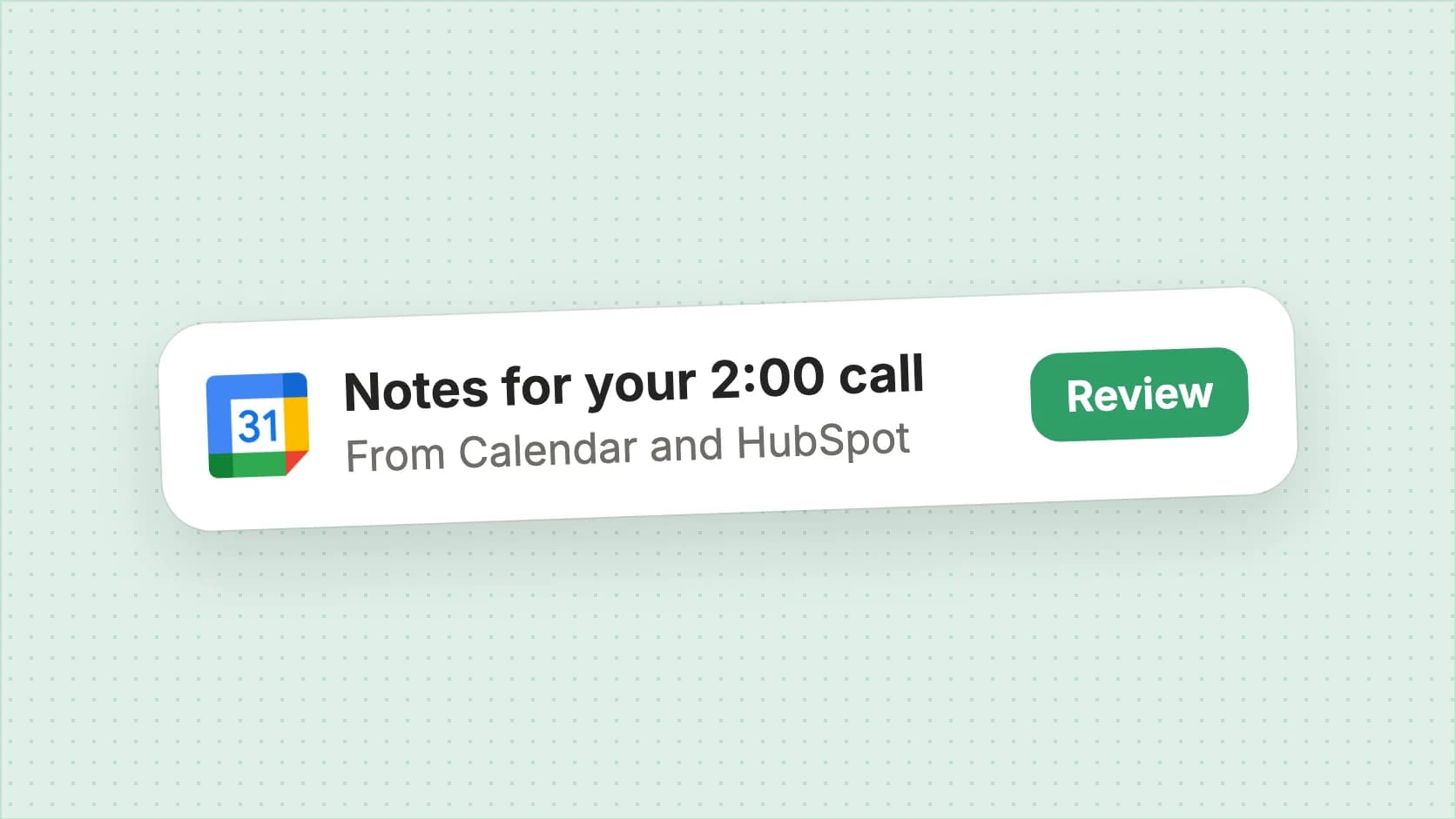
A suggestion that only asks “Want me to look into this?” hands you one more decision. The useful part is still yours: find the thread, see what changed since, draft the next move.
So Griddy’s suggestions start that part on their own. When it spots a next step in your recent work, it does the groundwork in the background and tells you once there’s something to look at. Here is what gets prepared, where it shows up, and how to turn it off if you’d rather start things yourself.
Where a suggestion comes from
Suggestions come from Activity, the record of your screen that Infragrid keeps on your Mac once you start recording. After a stretch of work settles, Griddy reviews it and proposes at most one next step. Sometimes it proposes nothing, which is the right answer when the work is already finished.
A proposal is one of a few kinds:
- Fix a blocker. An error or dialog stopped you partway through.
- Pick up where you left off. You came back to something you hadn’t finished.
- Follow up. A loose end from the work you just did.
- Offer help. A task Griddy could take on for you.
- Suggested runbook. A job you seem to repeat, worth writing down once.
By default it looks at work you’ve finished. If you also want it to consider what’s on screen right now, switch on Use current screen in Settings.
What gets prepared before you see it
For the first four kinds, Griddy starts the task in the background, in its own chat, before the card reaches you. It looks back at the recorded moments, checks the current state of the thread or file involved, and does the research, analysis and drafting the step needs. You keep working while it runs.
Say you spent the morning in a customer thread and stopped halfway through a reply. The card you get is the result: a short line saying what’s ready, such as a drafted reply with the order details it refers to, and a Review result button. That example is illustrative. What gets prepared depends on what you were doing.
Griddy holds the card while the work runs, for up to about 15 minutes. If it takes longer, the card arrives anyway and shows its progress. Suggested runbooks are never prepared this way. They wait for you to create them.
Where suggestions show up
The Notch. New suggestions appear as cards under the Notch at the top of your screen, up to three at a time, for ten seconds each. Hovering pauses the timer. Closing a card or letting it time out keeps it saved. In Settings you choose when the Notch can show them: When useful, at Specific times of day, or Suggestions only, which saves them without interrupting you.
Inbox. Saved suggestions sit under Ideas, alongside updates from your connected apps.
Activity. The Suggestions tab lists them, and each episode in History carries the suggestion it produced, next to the work it came from.
Reviewing the result
Each card opens with the apps and time it came from, and clicking that line jumps to the recorded moment. The main button changes with the state of the prepared work:
| Button | What it opens | |
|---|---|---|
| Ready to review | Review result | The chat with the finished result |
| Needs your review | Review | The chat, where it’s waiting on you |
| Preparing | View progress | The chat while the work is still running |
| Could not finish | View details | The chat, with what got in the way |
Click the status line on a prepared card to expand it. You get the rest of the findings and thumbnails of the recorded moments behind them, so you can check why it was made before trusting the result.
Feedback changes what you see next. The thumbs mark a card Useful or Not useful, and Not useful pauses similar suggestions for seven days. Dismiss clears the card. The card’s ⋯ menu adds Snooze 1 hour and Mute this type in this app.
The daily limit and the off switch
Griddy prepares up to eight suggestions a day. It also keeps room for the tasks you start yourself: when your background tasks are close to full, a new suggestion skips preparation and arrives as a regular card. The same happens if the work can’t start.
To turn preparation off, go to Settings → Activity → Suggestions and switch off Prepare before notifying. Suggestions keep arriving, each with a button for its next step (Investigate, Continue task, Follow up or Get started), and the work begins when you click it, in a new chat.
From suggestion to runbook
Some suggestions point at work you’ll do again next week. For a suggested runbook, the card’s main button is Create runbook. It creates an editable runbook draft and opens a chat where you shape it with Griddy. Any other suggestion can take the same path from its menu with Turn into runbook.
After that, the card shows Runbook drafted, or Runbook deployed once it’s running, with a link to open it. The draft is yours to edit, test and deploy when it’s right.
To try it, download Infragrid, start recording in Activity and work as you normally would. When Griddy has something worth your time, it shows up under the Notch and in your Inbox.