Yaw Boateng
Some jobs take longer than you want to sit and watch. Say you ask Griddy to pull this week’s numbers from three dashboards, then your train arrives and you shut the lid. A task on This Mac can only work while your Mac is awake.
Cloud is the other place a task can run. Here’s how to choose between them, what keeps going with the lid closed, and where to look when you’re back.
Choose where each message runs
The composer has a small menu that sets where a message runs: This Mac or Cloud. The Cloud option says what it’s for: “Keeps running while your Mac is closed or off.”
The choice is per message. If you mostly want one of them, set Default execution location in Settings and new messages start there.
| This Mac | Cloud | |
|---|---|---|
| Keeps going with your Mac closed or off | No | Yes |
| Browser it uses | The Infragrid browser on your Mac | A cloud browser with a synced copy of your profile |
| Works in Mac apps | Yes | No |
| Uses your connected apps | Yes | Yes |
| Watch it live | Yes, in the browser panel | Yes, with View browser |
Your logins come with the run
A cloud browser is only useful if it’s signed in to the sites your task needs. So when you pick Cloud, Infragrid syncs your active browser profile to it. There’s nothing to export and no cookie file to upload. While the sync runs, the menu shows a spinner, and picking This Mac again cancels the switch.
Sometimes a site’s data can’t be copied. Settings then shows “Some browser data wasn’t copied” and tells you that you may need to sign in again in the cloud browser. If a run reaches a login page anyway, its card says Sign-in required.
Sync goes both ways, and getting that right meant changing how we treat cookie refreshes. Sites refresh their login cookies constantly. An earlier version treated every refresh as a new sign-in. It rebuilt the browser on your Mac, losing site data, and stopped cloud tasks mid-run along with the cookies they had just refreshed. Logins didn’t last. Now an ordinary refresh merges in place, and signing out of a site on your Mac carries over to the cloud copy. When the same site changed in both places, Settings asks you to choose: Keep this Mac’s copy or Keep the cloud copy.
What keeps running with the lid closed
A chat task sent to Cloud shows a card that says Running in Cloud and “Keeps running when you close the app.” When it finishes, the cloud browser stays open for follow-ups and closes after 10 minutes of inactivity. A quick “now do the same for last month” picks up on the page it was already on.
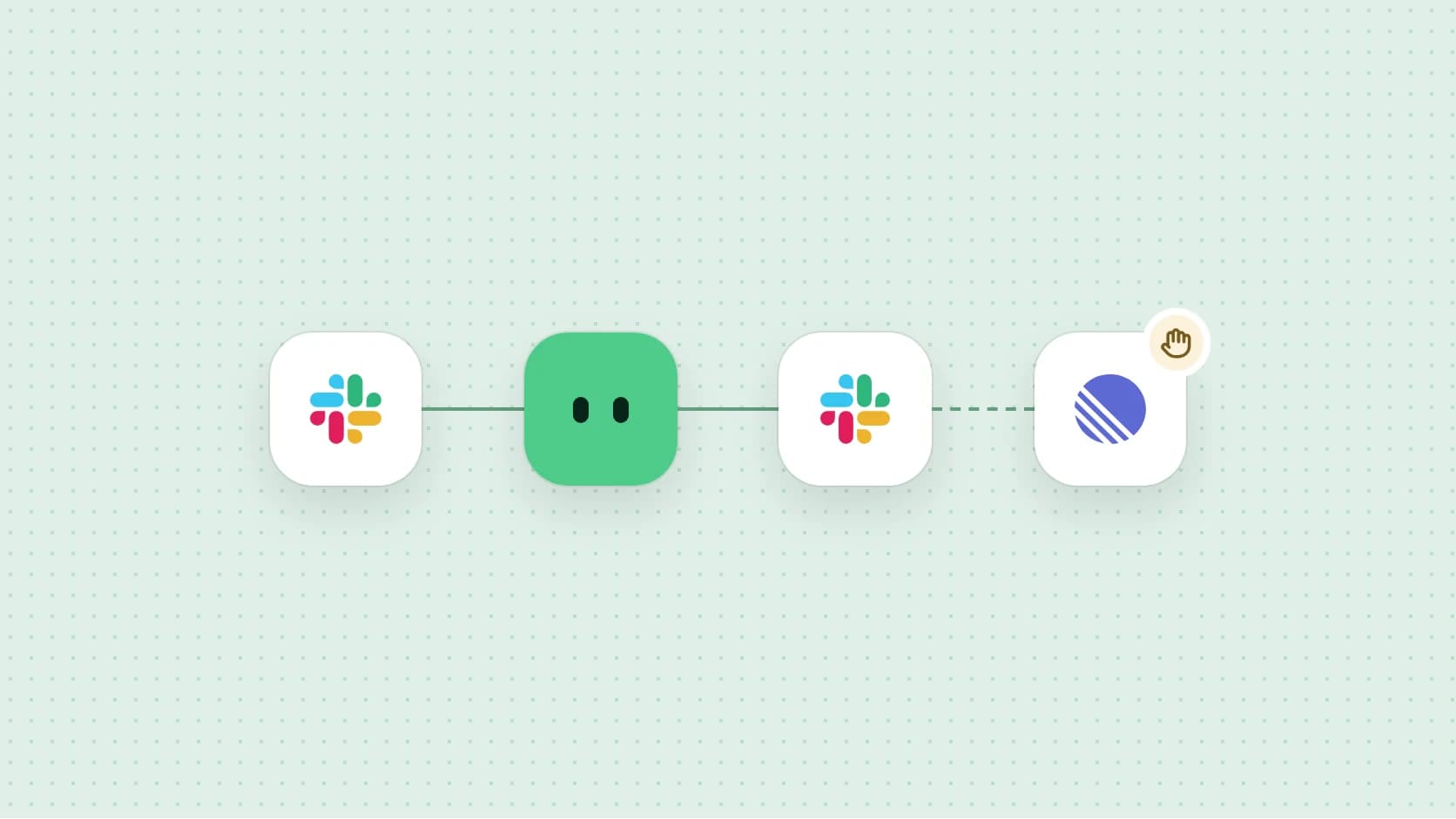
Every schedule runs in the cloud too. A runbook can start on a recurring schedule, when a connected app sends an event, or when a Telegram message arrives. Our servers start the run, so your Mac can be closed or switched off.
A scheduled runbook that uses a browser is tied to one Cloud browser profile. The form spells out the boundary: “Runs use the saved logins in this profile. Connected app permissions are checked separately.” A runbook whose steps only use connected apps doesn’t need a profile.
Two rules keep unattended runs predictable. A schedule keeps the runbook version you reviewed, and if that runbook changes, execution stops until you review and save the schedule again. And if a runbook pauses until a set time, its card shows when it resumes, with no browser running in the meantime.
Here is how that looks for a job you might do every morning. Say you send Griddy this:
Every weekday at 8, sign in to our supplier portal, list the invoices due this week and post them in #finance.
- Save it as a runbook and give it a schedule: Weekdays at 8am.
- Choose the cloud browser profile that’s signed in to the portal. The Slack post goes through your connected Slack account.
- Close the laptop. At 8 the run starts in the cloud, opens the portal already signed in, and posts the list.
- Check it when you’re back under Past runs in Runbooks → Schedules.
What stays on your Mac
Anything that needs the Mac itself runs on This Mac, such as work inside your Mac apps. Those tasks need Infragrid open and the Mac awake.
Activity, the screen and input capture Infragrid learns your work from, is recorded on your Mac. So is a Guide you record by showing Griddy a task.
Our rule of thumb: pick This Mac when the job needs your Mac’s apps or you want to work alongside it. Pick Cloud for browser and connected-app work you’d rather not babysit.
See what happened afterwards
For a chat task, open Infragrid and the answer is waiting in the same chat. While a cloud task is still going, View browser shows you the live page. If you step in, the card says “You have control,” and Griddy stays paused until you hand control back.
Scheduled runs collect under Past runs in Runbooks → Schedules, next to your saved schedules. Each run has a status: Queued, Running, Completed, Failed or Needs attention. Open one to see its Runbook steps, Agent activity and Final result. You can choose when you hear about a schedule, from every start and finish down to failures and action required.
When we can’t confirm whether an action went through, the card says so with Needs verification: “An external effect may already have occurred. Verify the outcome before repeating this action.” Rerunning a scheduled run carries the same caution: actions that succeeded the first time may happen again.
Try it on your next long task
Running tasks in the cloud and scheduling them are part of the Pro plan. If you have a browser job you usually leave a tab open for, download Infragrid, pick Cloud before you send it, and close the lid.