
How to automate data entry without an API
Prepare a browser or desktop data-entry runbook with field mappings, stable record IDs, approval boundaries, and checks that prevent duplicate work.

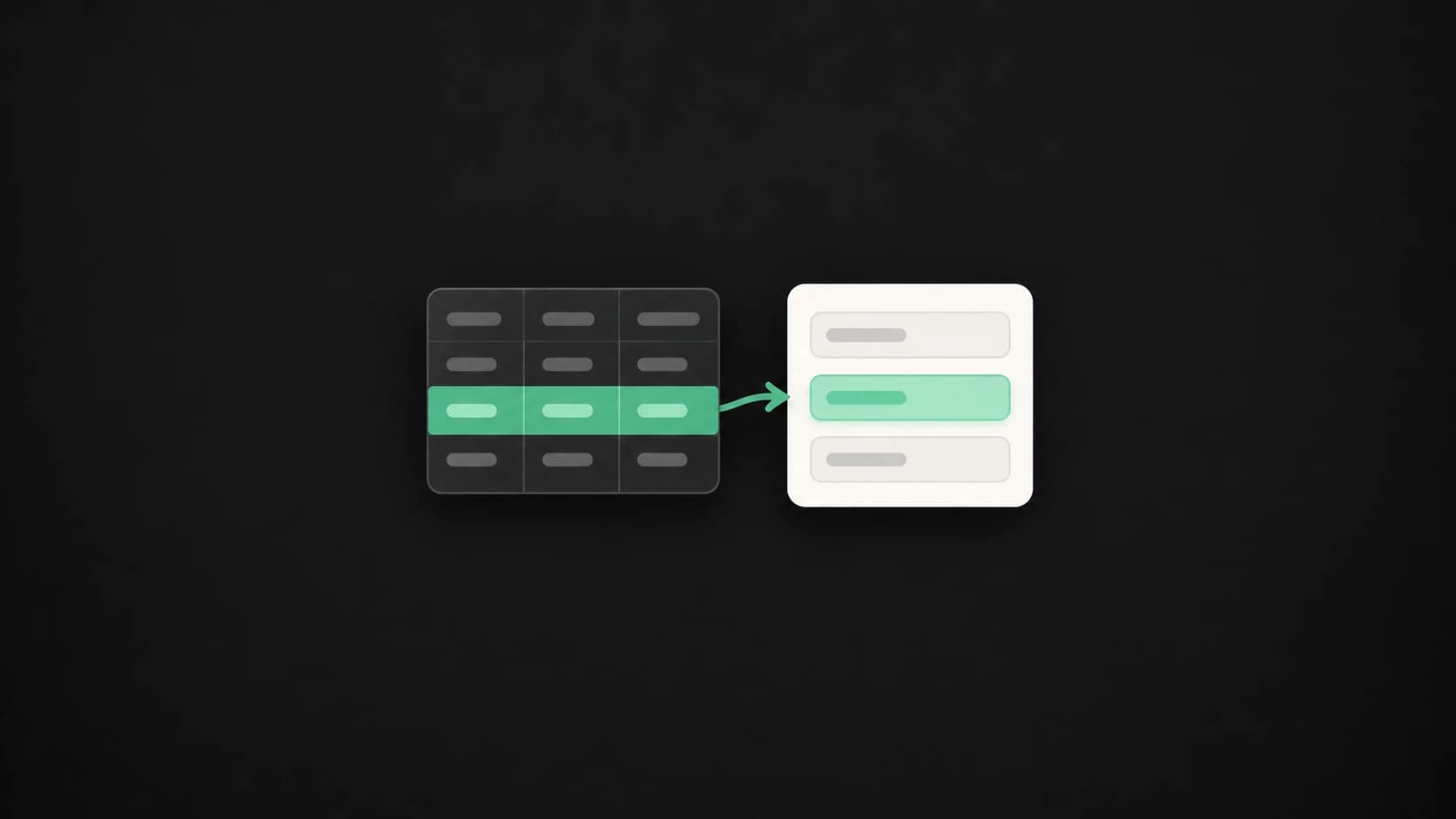
You can automate data entry without an API by using the application's browser or desktop interface. Define a source, map its fields to the destination, identify each record reliably, and check the saved result. A built-in import is still worth checking before automating individual form entries.
Infragrid is a Mac app for recording tasks, refining reusable runbooks, and running computer-use agents across approved software. For a legacy system, the question is whether the agent can complete your specific form and verify the result. A familiar-looking interface alone is not enough evidence.
Here is how I would scope a vendor-contact update. The records are fictional; use this procedure to test your own system.
1. Check for an import before automating the form
Look for a supported CSV import, bulk-edit screen, or existing connector. If one covers the fields and validation rules you need, it can reduce the number of interface actions to maintain. Test whether the import updates existing records or creates new ones; those are very different operations.
Computer use is worth evaluating when the approved interface is the practical route: perhaps the system has no suitable import, or each update requires reading a note and deciding which field to change. Start with a small batch in a test environment or with records you are authorized to update.
2. Write a field map and a matching rule
Imagine a source sheet with vendor_id, contact_email, and review_note. The destination has Vendor ID, Primary contact email, and Internal note fields. Write these mappings into the instructions. Do not assume similar field labels have the same meaning: Billing email and Primary contact email may reach different people.
Use vendor_id to find the existing record. If the application shows two matches or none, return the row for review. Company name alone is a weak identifier because branches, renamed businesses, and duplicate records can share it. Keep the source row number in the result so a reviewer can trace every attempt.
- vendor_id → Vendor ID: match the existing record; do not create one if it is absent.
- contact_email → Primary contact email: use the supplied value only.
- review_note → Internal note: specify whether to append or replace.
- Blank source values: skip the field unless clearing it is explicitly intended.
- Result fields: source row, record ID, outcome, and the reason for any exception.
3. Record one update and review the instructions
Demonstrate opening the source, finding the destination record, comparing existing values, and preparing the change. In Infragrid, review the captured task before running it again. Make the changing spreadsheet, tab, row range, and record IDs explicit in the task you supply.
For an initial review, ask for proposed changes before saving them. A concrete instruction is: “For rows 2 through 6, locate each existing vendor by vendor_id. Compare Primary contact email with contact_email. Prepare a list of old and proposed values. Skip blank emails, report ambiguous matches, and stop before saving changes.” This separates matching and interpretation from committing the update.
After inspecting that list, authorize the intended updates. Keep unrelated actions outside the task: changing a contact field should not also send a notification or alter a payment method. If the application itself triggers other effects on save, account for those before choosing it as a test.
4. Reopen the record and check the saved values
A Save click is an attempted action. Reopening the same record and finding the expected value is stronger evidence that the update persisted. Check the record ID again during verification so a correct email on the wrong vendor does not count as success.
Use three fictional cases when reviewing your instructions: V-101 has a new email and should change; V-102 already has the requested email and should remain unchanged; V-103 has a blank source email and should be skipped. Those outcomes test a useful update, a repeat, and an exception. Compare your observed results with these expectations.
Keep outcomes distinct: updated and verified, already correct, skipped for review, and attempted but unverified. If the application rejects a value, preserve the error in the result instead of describing the row as completed.
5. Resume from the destination's actual state
If a batch stops after some saves, inspect the destination before retrying. The final report may be incomplete even though a change persisted. Compare current and desired values again, skip records already correct, and resume only the remaining work. Do not repeat an append operation blindly; it can duplicate notes on every retry.
Measure setup time, review time, corrections, and unverified records alongside the number of completed rows. A task is useful when the total effort and error rate improve for your process. A large batch count by itself does not establish either.
Start with one form and a few records. If authentication expires, the interface changes, or matching becomes uncertain, stop and revise the runbook. Infragrid can support the record, review, and run cycle; the acceptance test belongs to the real system where your data lands.
From reading to doing
Turn your next task into a runbook.
Capture how you work, refine the instructions, and give your agent a repeatable starting point.